File browser and text editor for Mac

Edit text files as you browse.

Browse your documents and edit text files in the same window. Make changes in PanePeek without opening a separate editor.

For macOS 26 and later.

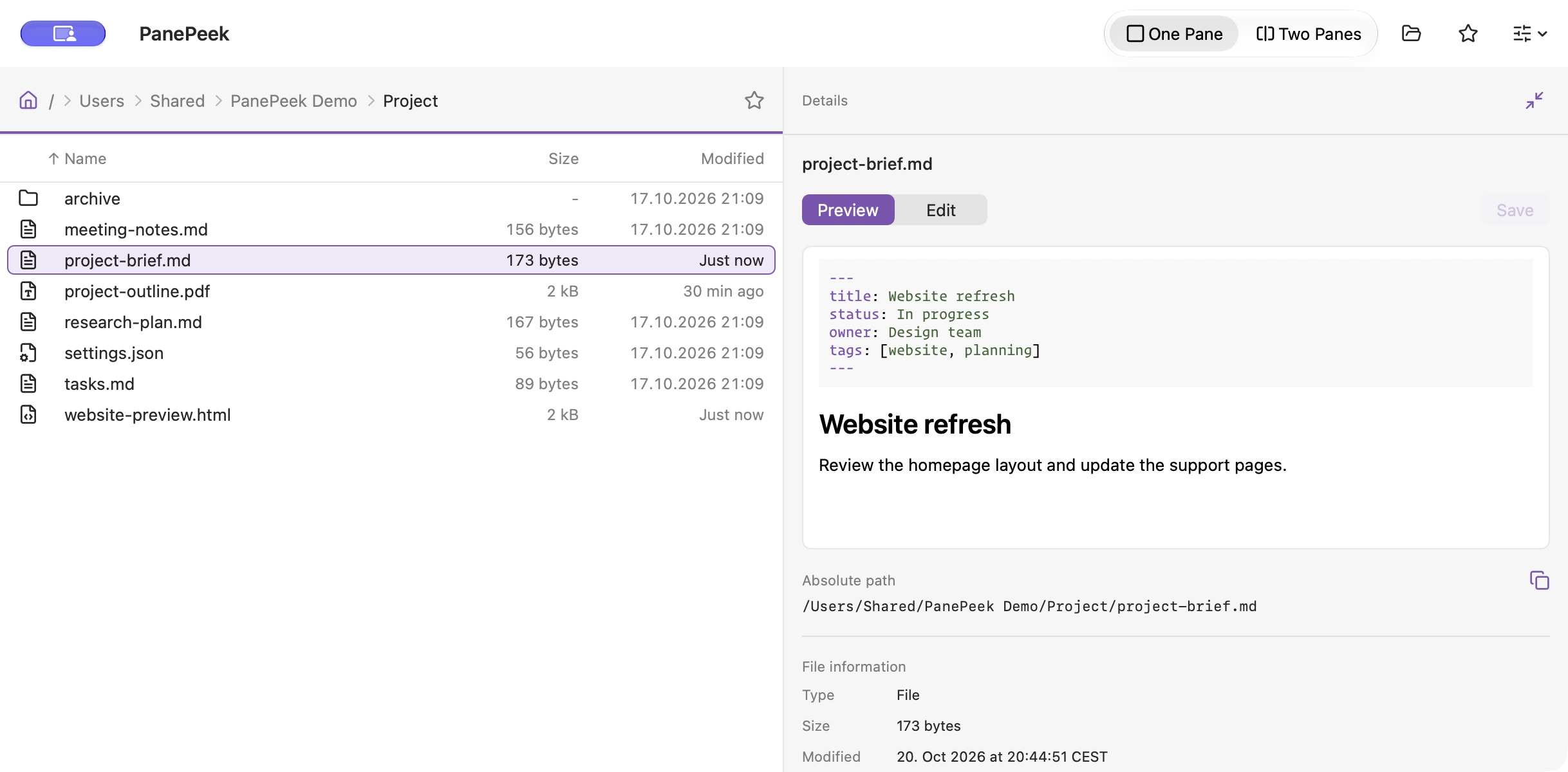
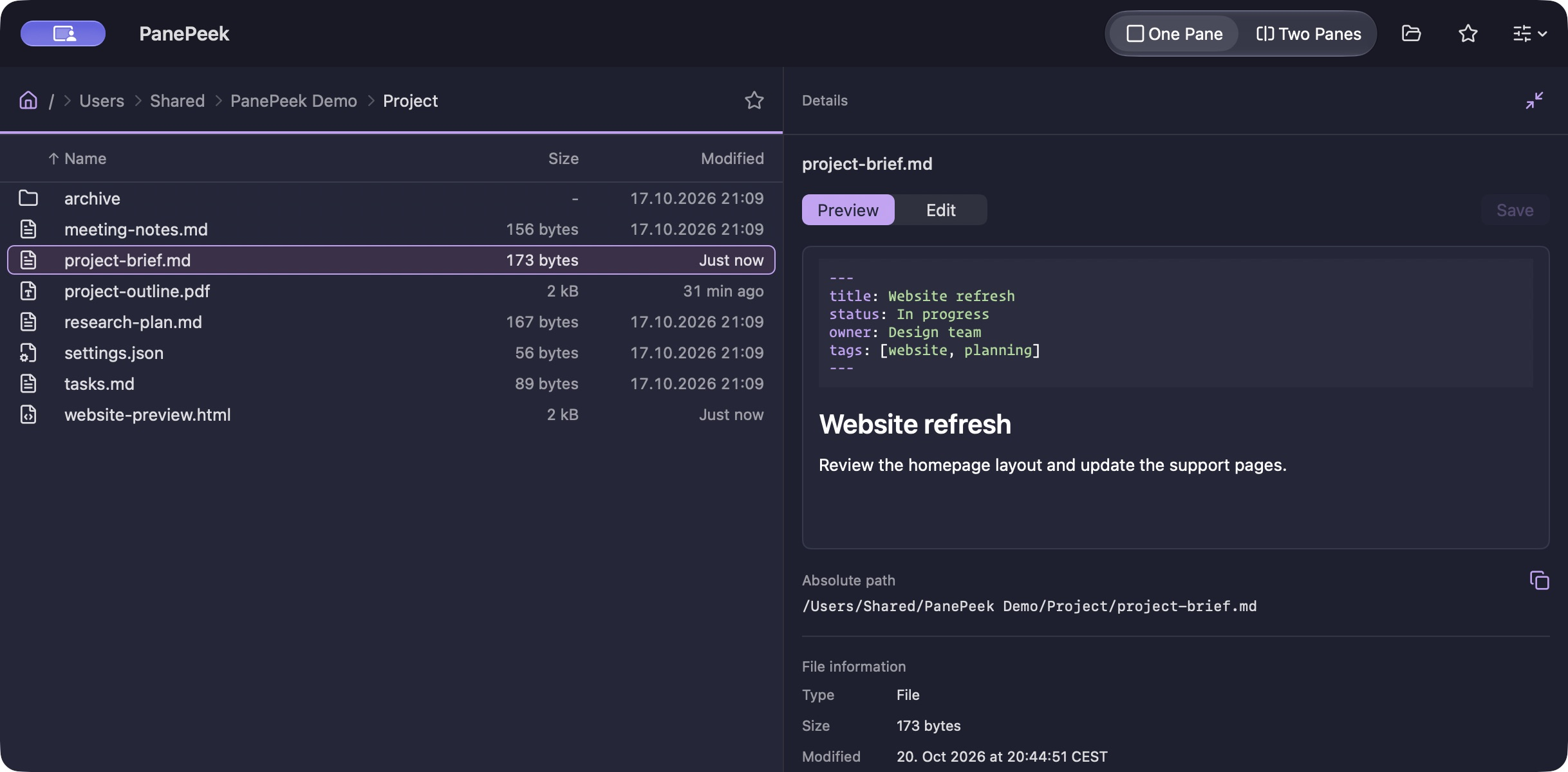
PanePeek in light mode, browsing the shared demo Project folder beside rendered Markdown with highlighted YAML front matter. PanePeek in dark mode, browsing the shared demo Project folder beside rendered Markdown with highlighted YAML front matter.
Markdown and front matter, beside your files.App screenshot · Sample files

Edit in place

Your editor,
beside your files.

Select a text file and choose Edit in Details. Make your changes beside the folder list, then choose Save to keep them in the file.

Edit code and settings files with syntax highlighting, including TypeScript, Python and Swift. See all supported languages and formats.

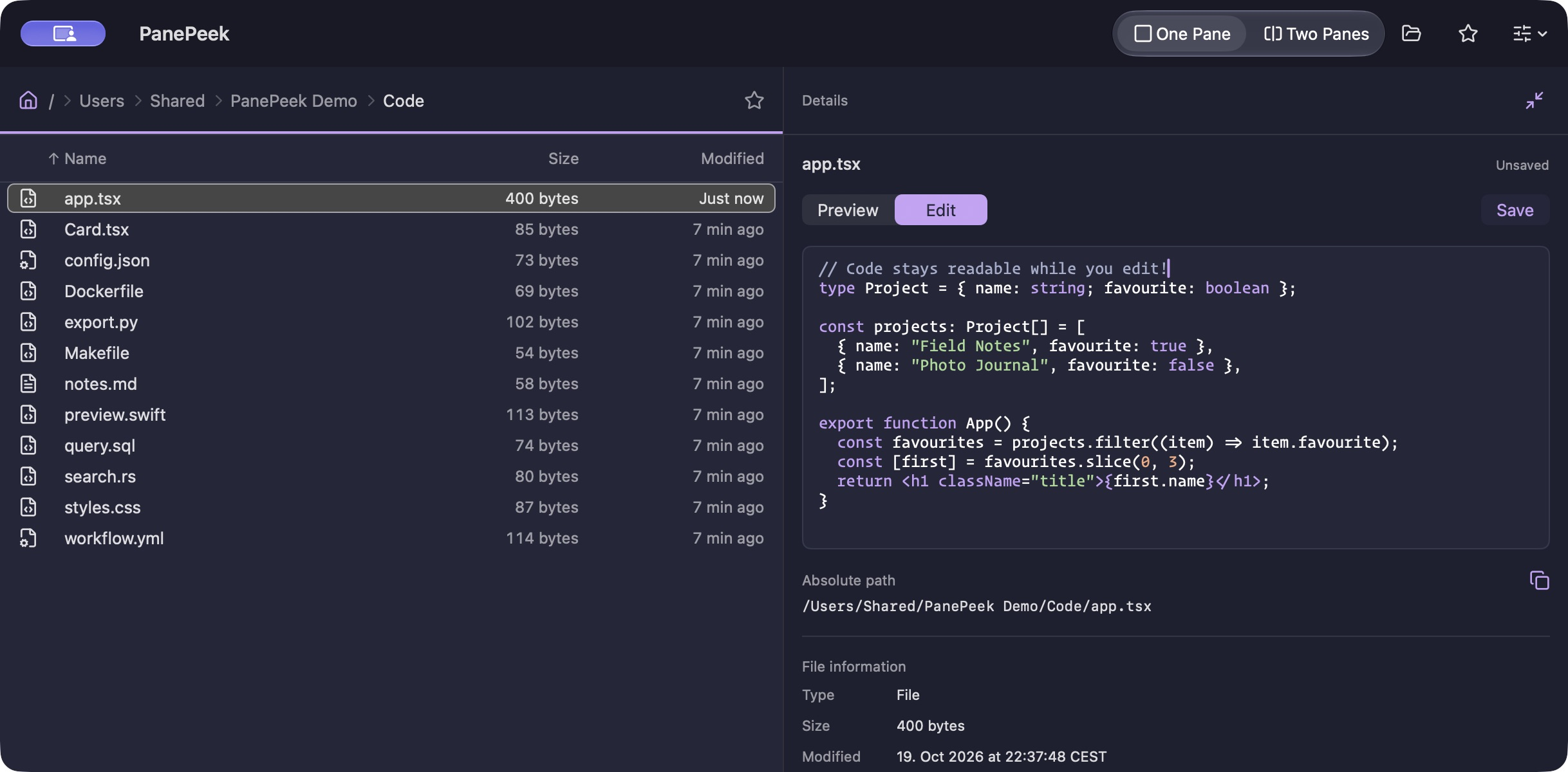
PanePeek in dark mode, editing a TypeScript TSX file with coloured syntax beside a folder of code and configuration files.
TypeScript highlighting in dark mode.App screenshot · Sample files
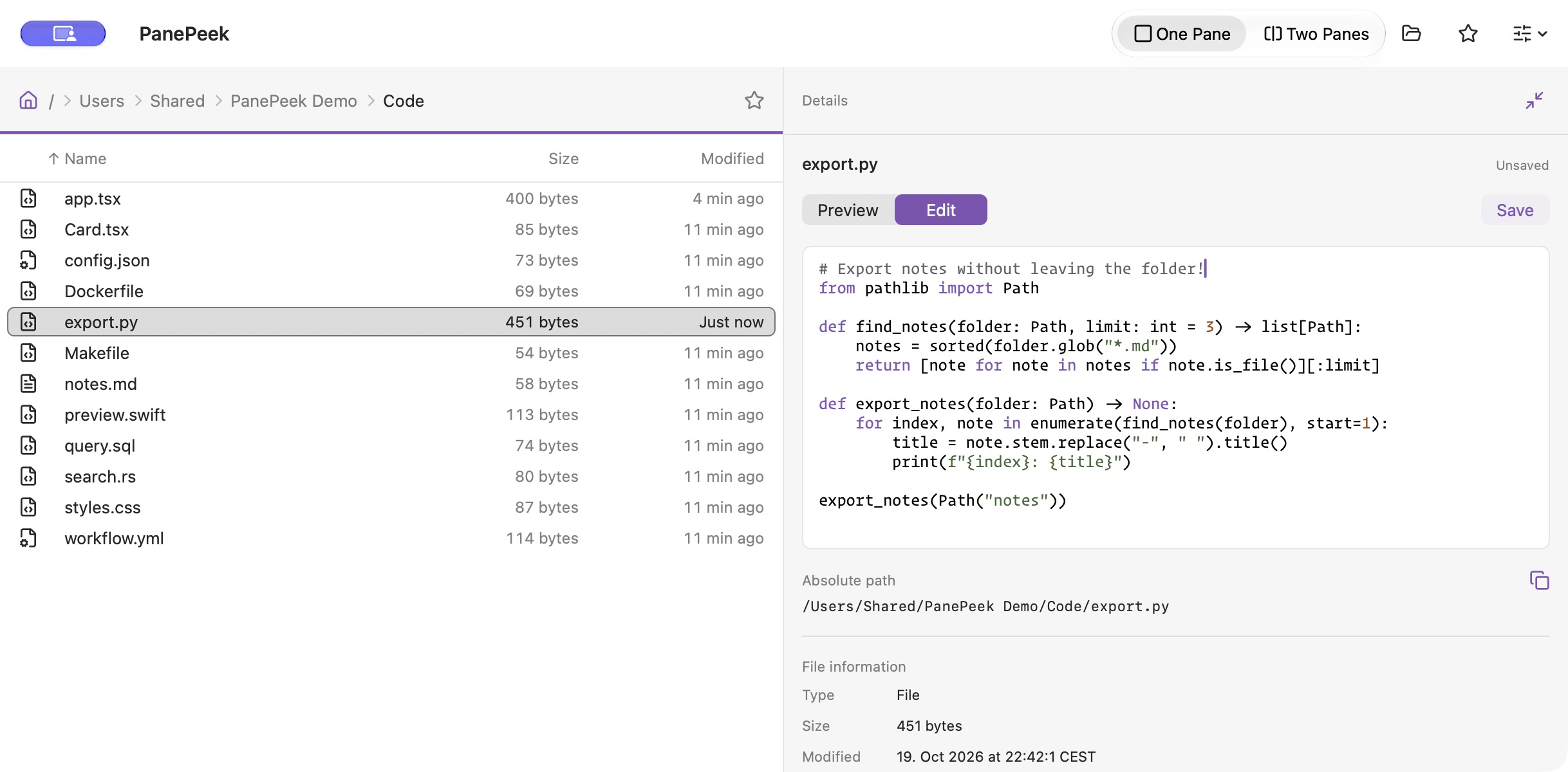
PanePeek in light mode, editing a Python file with coloured syntax beside a folder of code and configuration files.
Python highlighting in light mode.App screenshot · Sample files

Preview in place

See what’s inside.

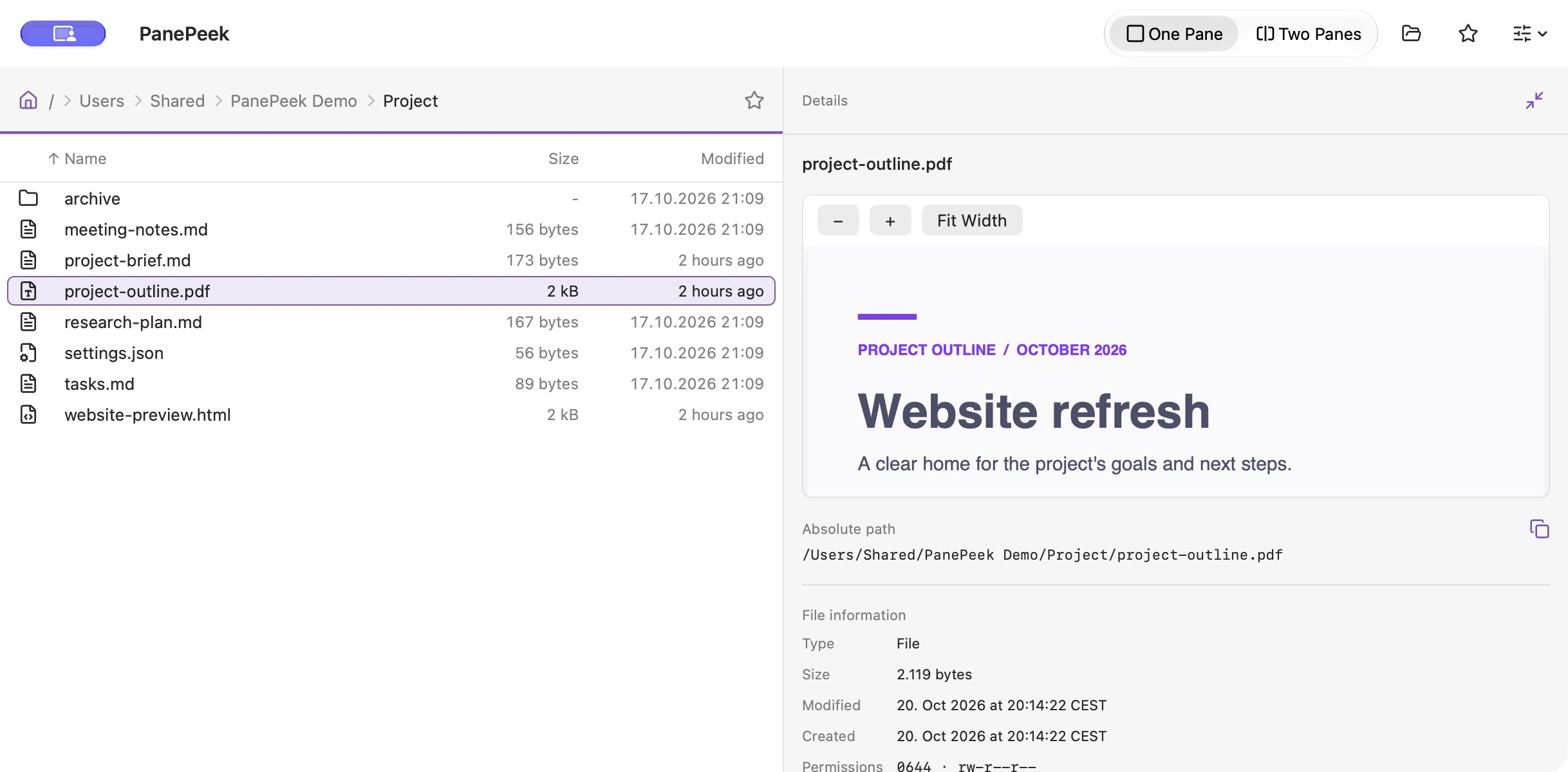
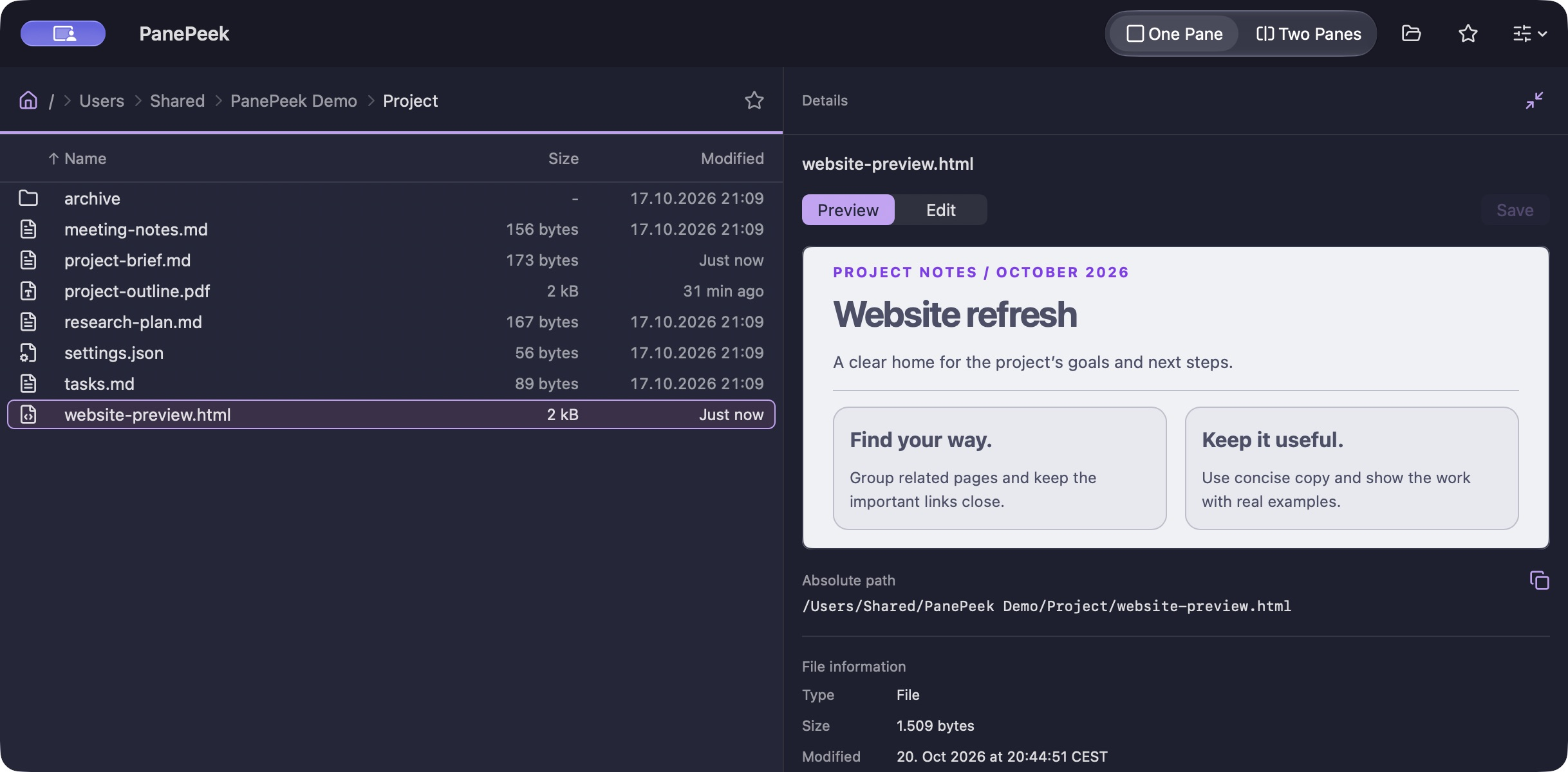
View Markdown, local HTML, PDFs, images, SVG and video beside your folders. See supported formats and limits.

PanePeek in light mode, showing a PDF fitted to the preview width and native zoom controls beside the shared demo Project folder.
PDF pages with scrolling and zoom.App screenshot · Sample file
PanePeek in dark mode, showing a local HTML page with styled headings and cards beside the shared demo Project folder.
Local HTML with its styles.App screenshot · Sample file

Folder browsing

More room
for your folders.

Open a second folder when you need to copy or move files between them.

Choose one or two panes.

Use one pane for a single folder, or open a second pane alongside it. Each pane keeps its folder when you switch views.

Save your usual folders.

Save folders as favourites and open them in either pane. Click a folder in the path at the top to return to it.

On your Mac

Useful keyboard
shortcuts.

More keyboard shortcuts
Go to Folder
Command L
Quick Look
Space
New Text File
Option Command N
Copy absolute paths
Option Command C
Show hidden files
Shift Command full stop
Resize Details
Control Command Left arrow or Control Command Right arrow

Questions about PanePeek

Good to know.

Which version of macOS do I need?

PanePeek runs on macOS 26 and later.

Can I use it alongside Finder?

Yes. You can drag files between PanePeek and Finder and use either app to browse your folders.

What can I preview and edit?

Details shows previews for supported text and images. It also plays local video. You can edit supported UTF-8 text files up to 1 MiB, with colour highlighting for common code and settings files. Press Space to open macOS Quick Look.